
Overview
Once results are flowing (see Monitor), the next step is understanding why scores look the way they do — which agents are strong on which skills, and where coaching is needed. This is done through the Agent Performance views under Cx Ops → Assessments, just below the dashboard summary.1. Agent Performance Chart
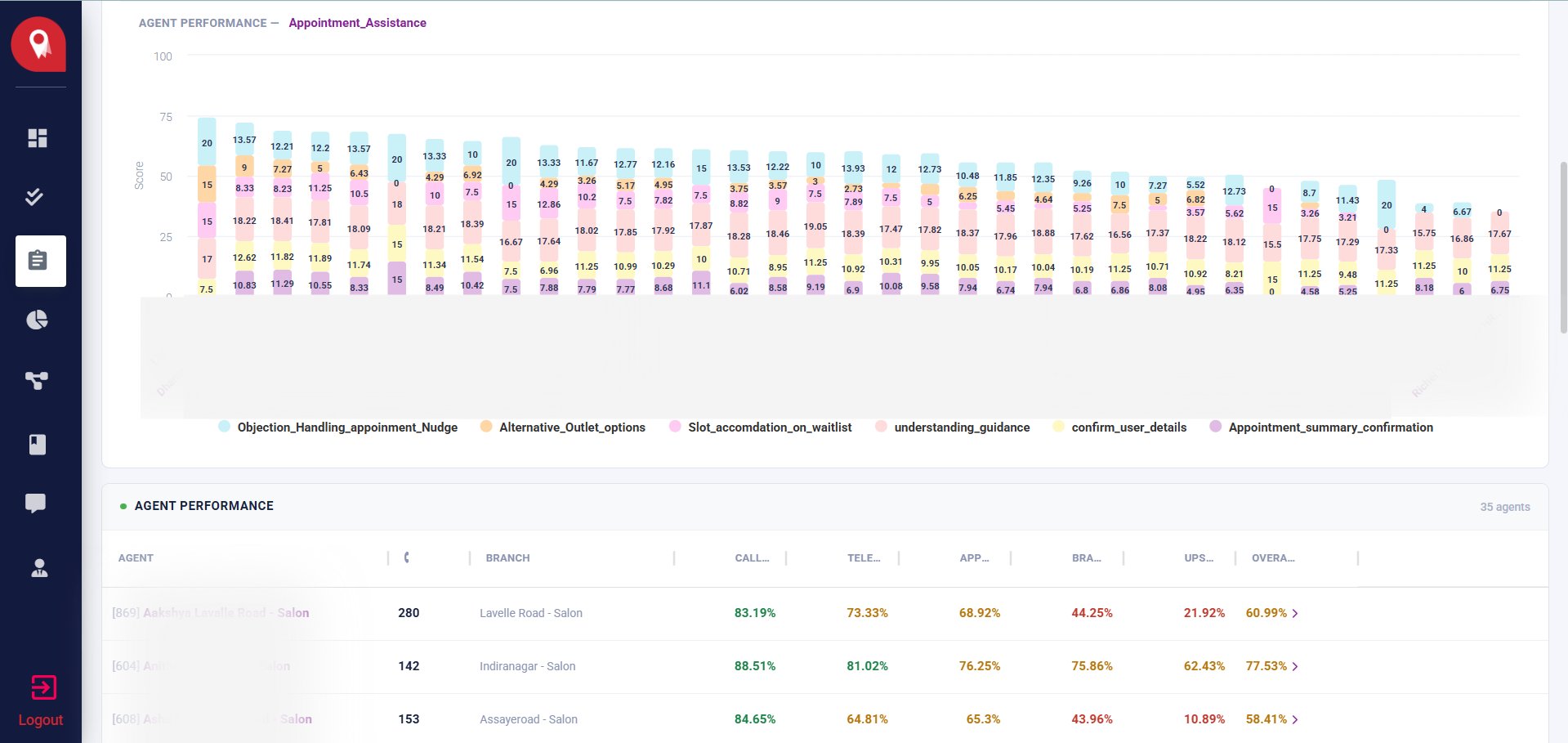
A stacked bar chart breaks down scores by agent for a selected Skill Dimension, split across its sub-parameters.1
Select a Skill Dimension
Choose the dimension you want to analyse (e.g.
Soft_Skills, Brand_SOPs, Upselling_Cross_Selling).2
Read the stacked bars
Each bar represents an agent. The segments within a bar represent that dimension’s sub-parameters.
3
Hover for detail
Hovering a segment shows the agent name, parameter, score, and percentage.
2. Agent Performance Table
The table view lists every agent with their call count, branch, and percentage score per Skill Dimension, plus an overall score.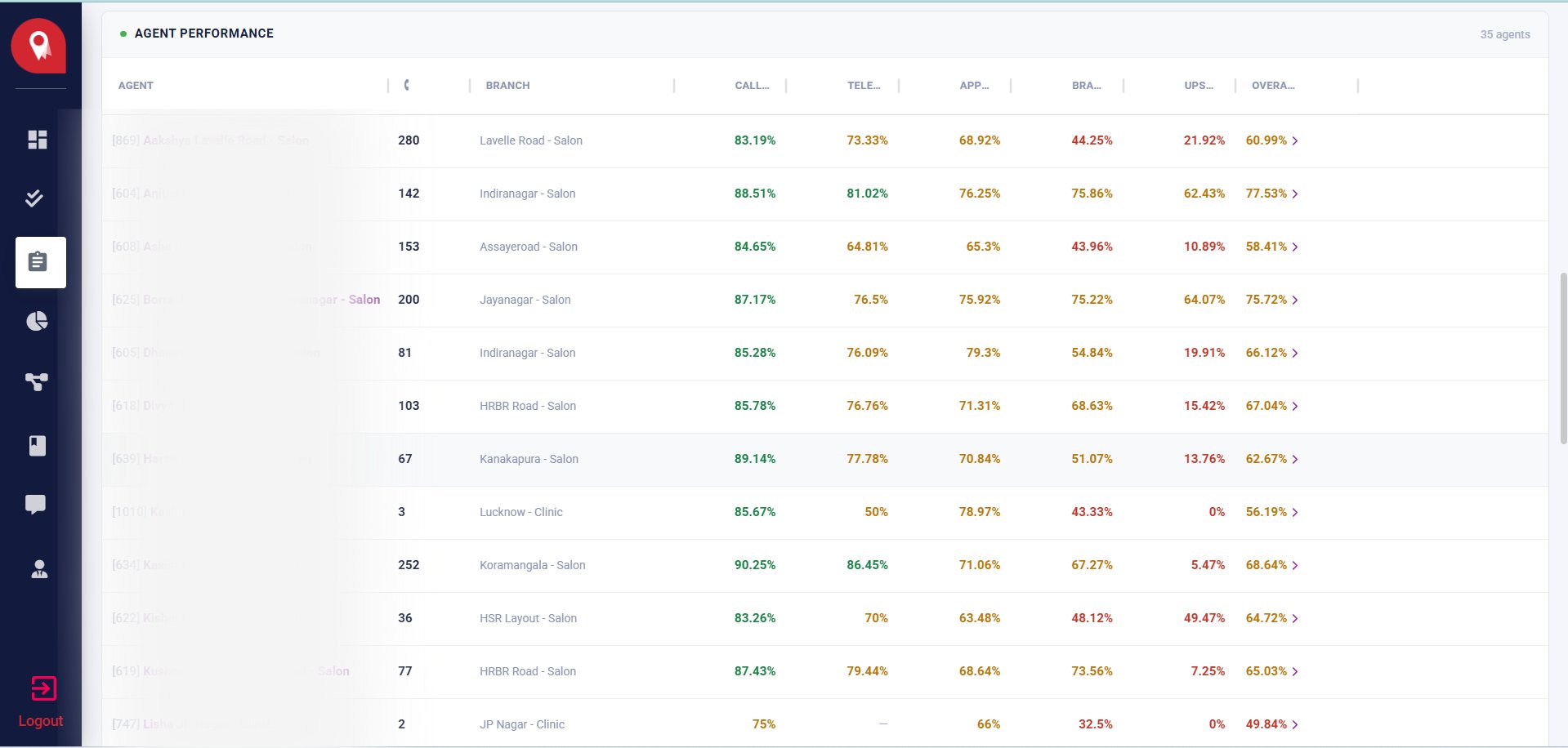
Overall scores are color-coded:
- 🟢 Green — high performance
- 🟡 Amber — mid performance, worth a closer look
- 🔴 Red — low performance, likely needs coaching or a call audit