- Check payment screenshots against bookings
- Find the lead who sent a specific file
- Review voice notes and documents the bot could not act on
- Remove unwanted or irrelevant files
Open the Image Gallery
1
Go to Ontology
From the side menu, go to Home > Ontology.
2
Open the Media tab
Click the Media icon in the top toolbar.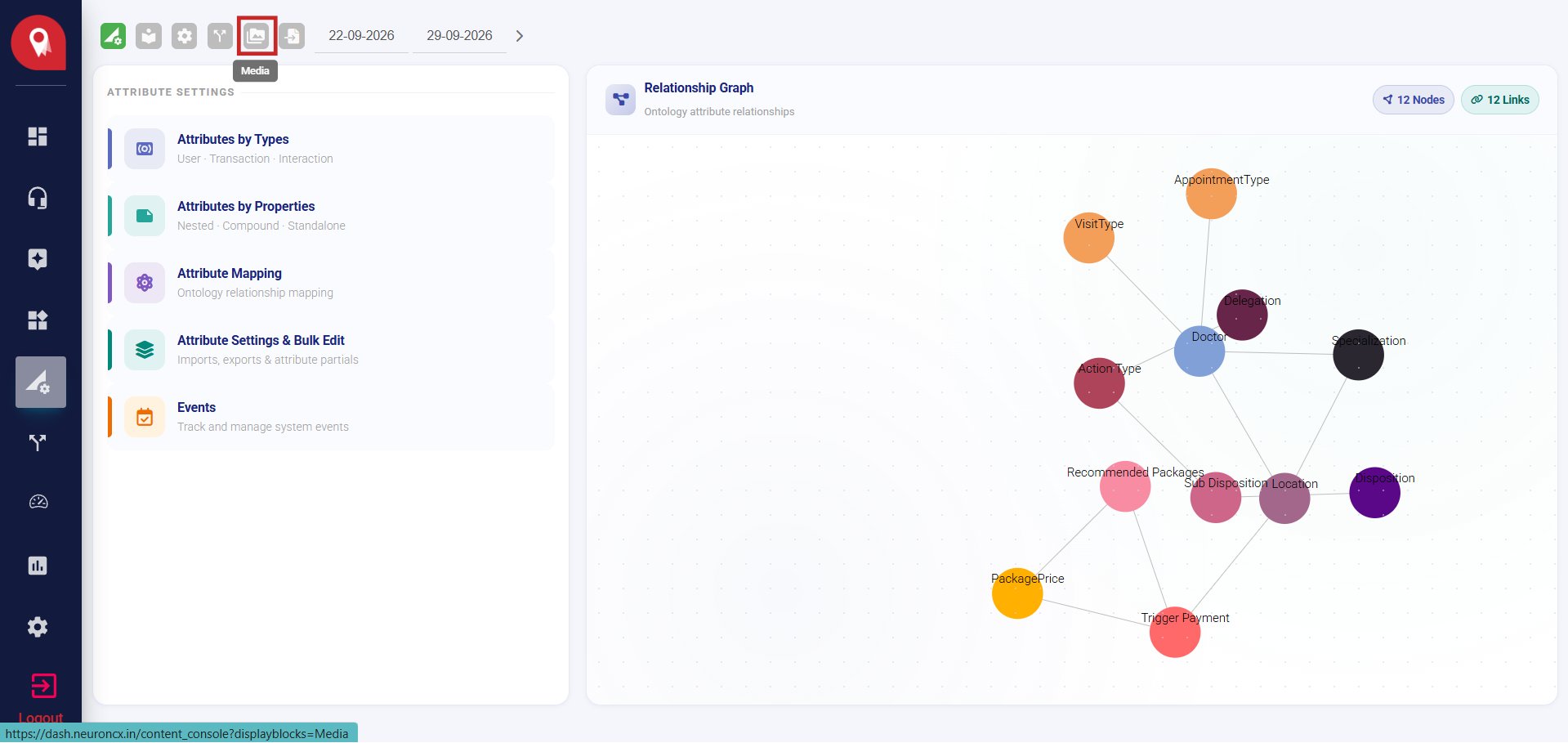
3
Select User Documents
Click the User Documents tab.
Filter by Date
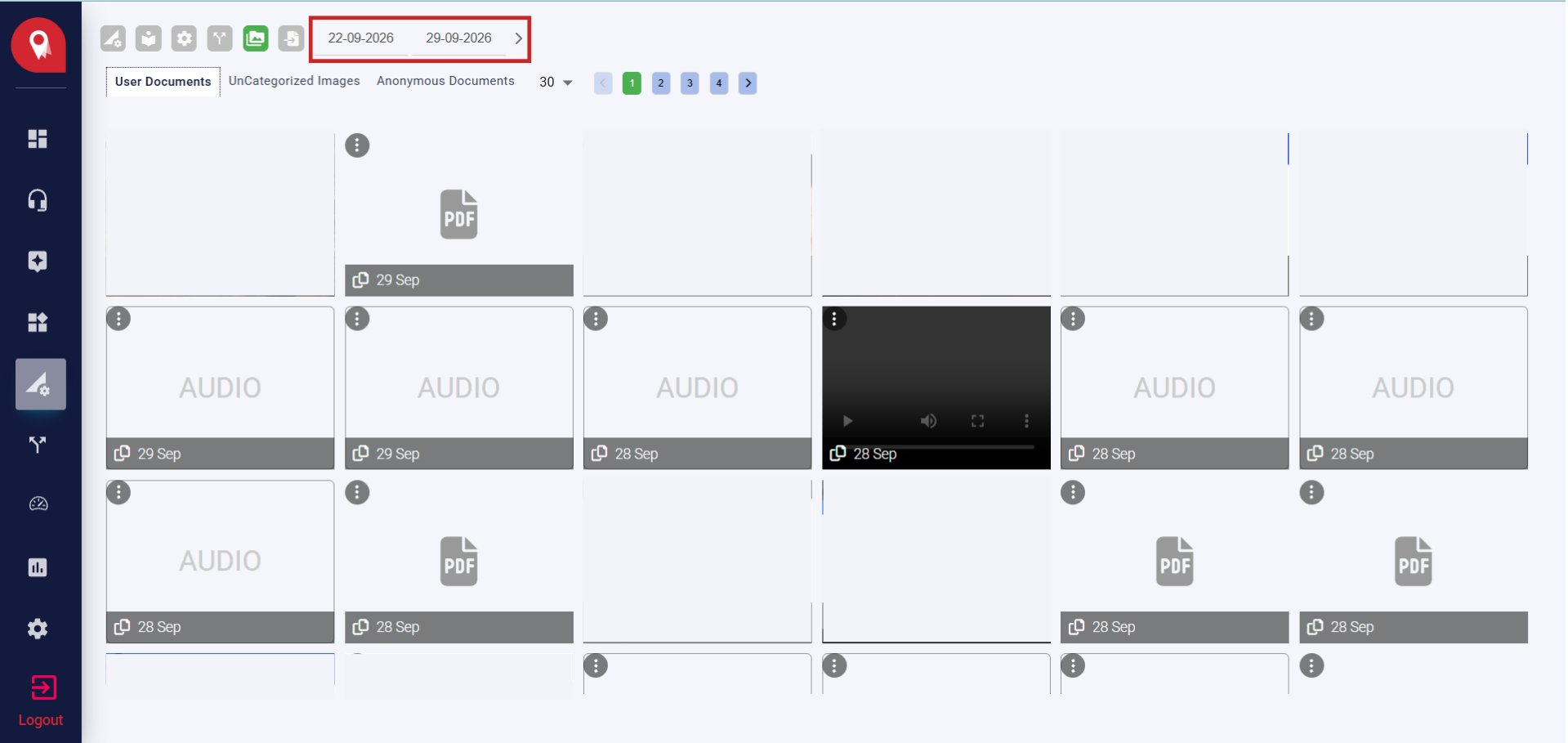
- Set the start date and end date at the top of the page.
- Click the arrow next to the dates to load the files for that range.
Browse the Gallery
Files are shown as tiles, newest first. Each tile shows a preview of the file and the date it was received.
To move through the gallery:
- Use the dropdown next to the tabs to set how many files show per page. The default is 30.
- Click the page numbers or the arrows to move between pages.
See Which Lead Sent a File
1
Click the profile icon
On the file’s tile, click the profile icon at the bottom.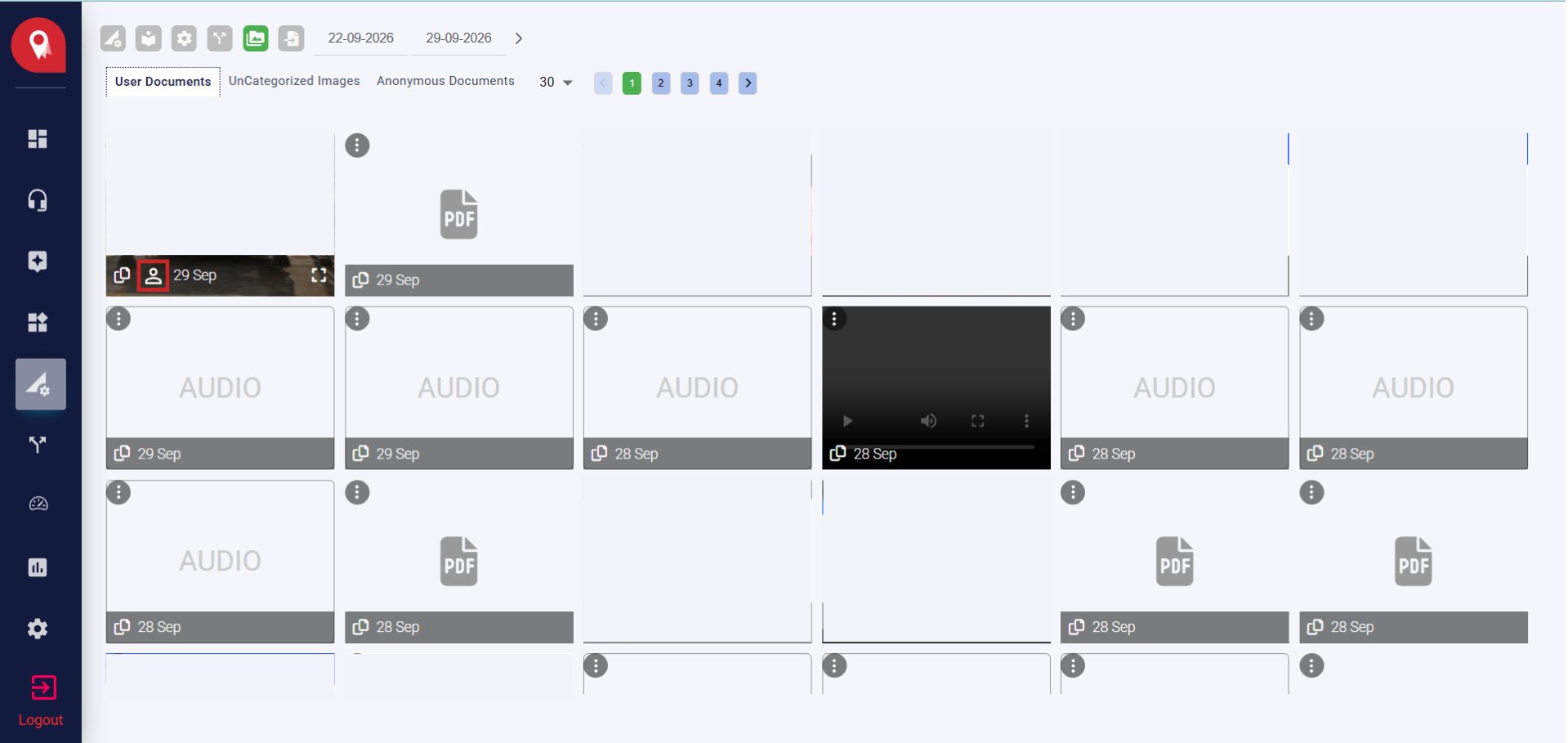
2
Review the lead
The leads page opens, filtered to the sender’s phone number. Check the lead’s name, source and activity, interactions, created date, stage, and phase.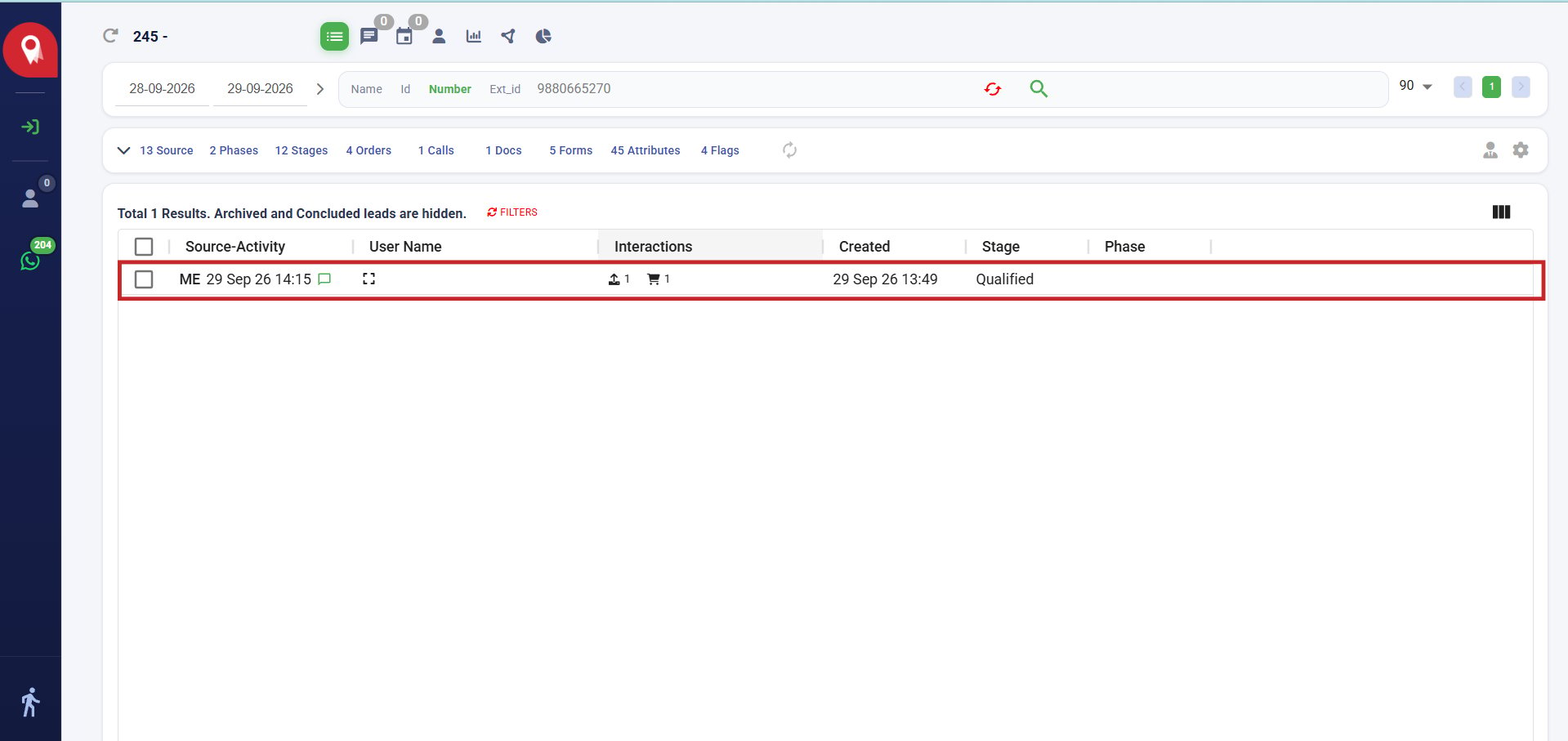
The profile icon only appears on files that are linked to a lead.
Archive a File
1
Open the file menu
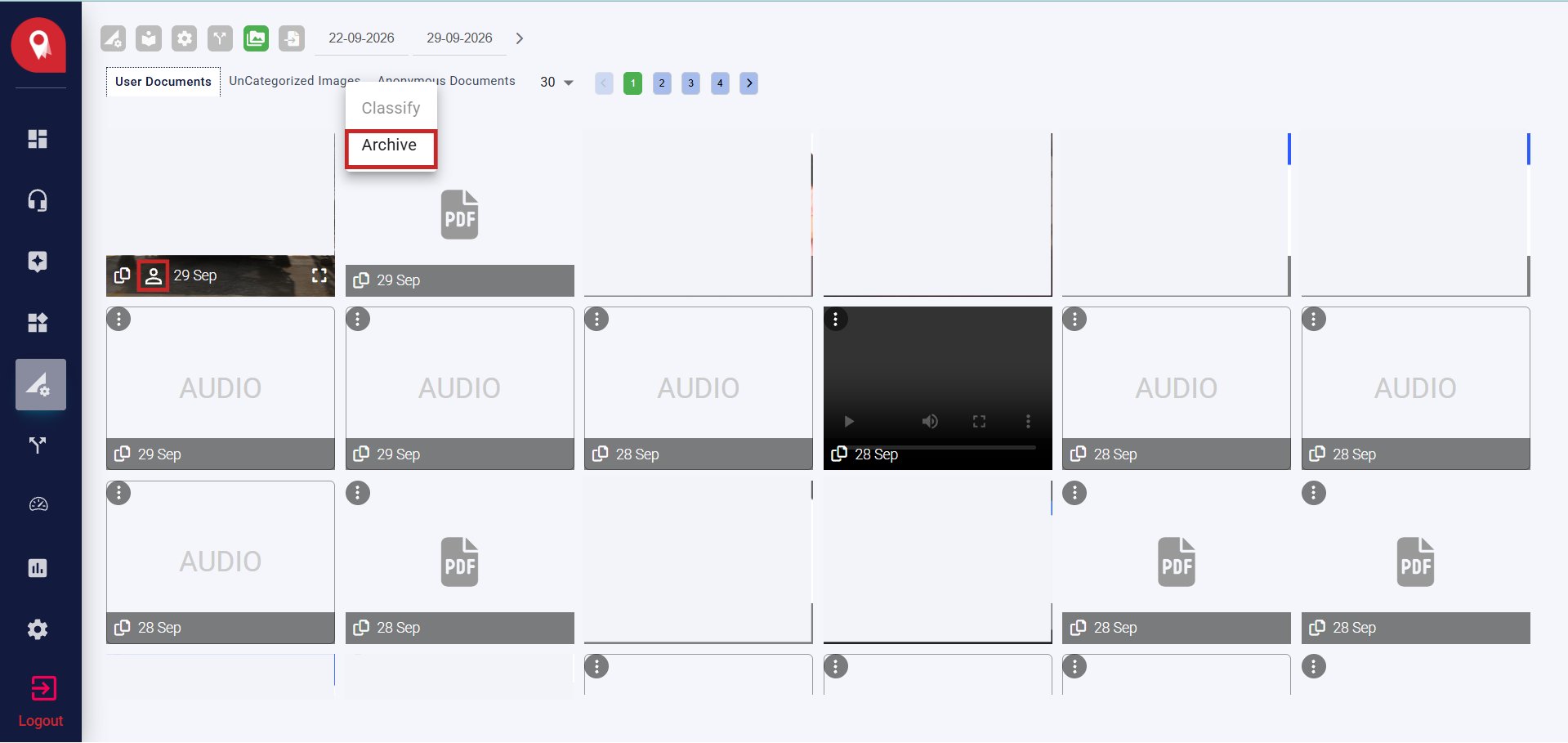
Click the three dot menu at the top left of the tile.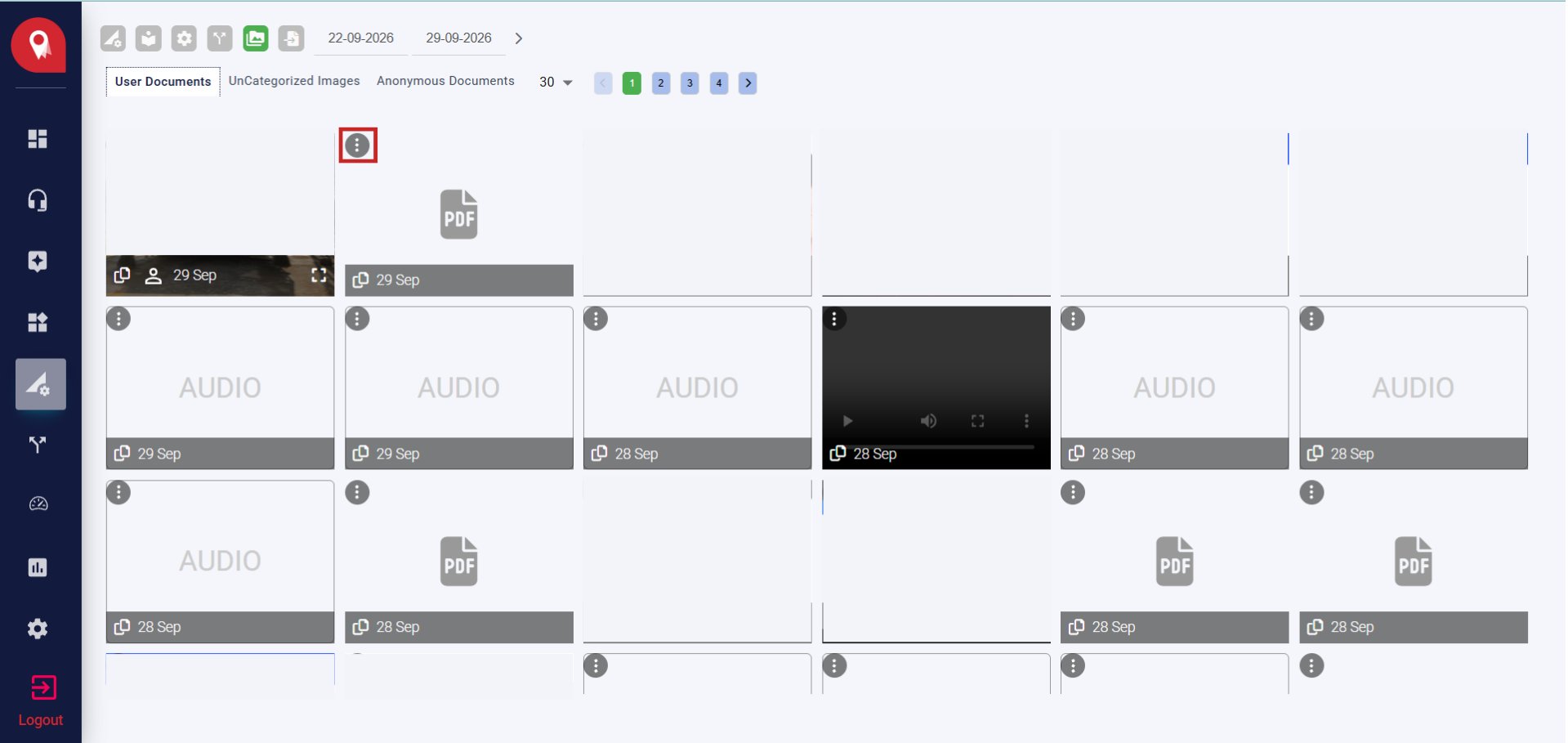
2
Archive the file
Click Archive. The file is removed from the gallery.