
Channels & Transactions
How do I set up a new source so I can track where a transaction came from (e.g. a new phone number or ad campaign)?
How do I set up a new source so I can track where a transaction came from (e.g. a new phone number or ad campaign)?
You can create a channel source — a labeled origin point like WhatsApp, Phone, Web Ads, or a custom integration — and attach it to your transaction pipeline so it shows up correctly in the Transactions Console.This is configured under Channels → Settings → Transaction Rules & Policies, and involves three steps: creating the source, attaching it to a webhook with an exam rule, and verifying it in the Transactions Console.Full walkthrough: Creating a Channel Source for Transaction
How do I find leads with a failed payment and check why the payment failed?
How do I find leads with a failed payment and check why the payment failed?
PY_FAILED is an order status that flags leads where a payment was attempted but did not complete — for example, due to an invalid card number, expired card, or a gateway error. There are two ways to investigate a failed payment.Finding PY_FAILED leads in the Transactions Console- Go to Transactions from the left navigation.
- In the filter bar, click 5 Orders to expand the order status filters.
- Select PY_FAILED, then click Apply Filter.
- The console now shows only leads with a failed payment.
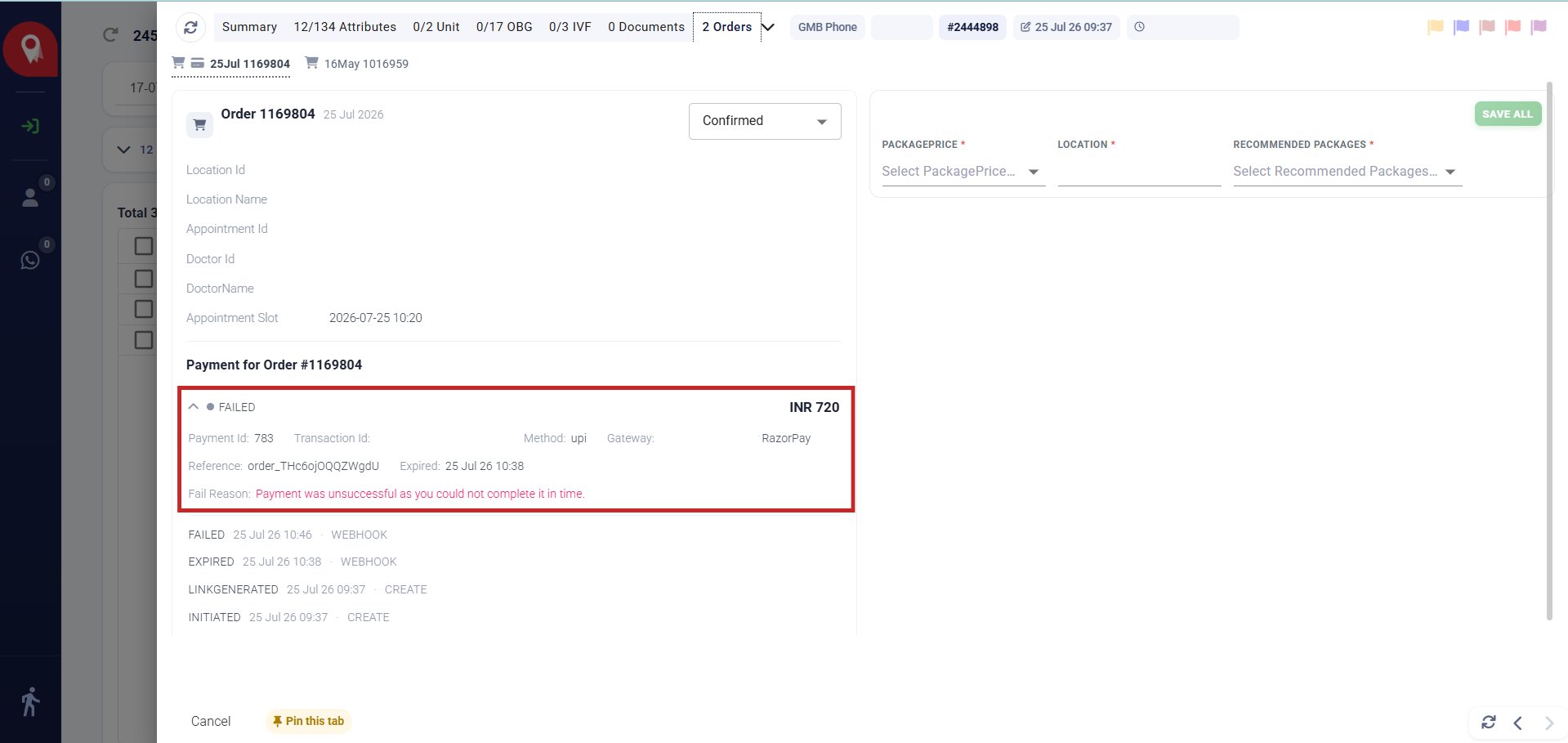
Method 1 — Check the fail reason via the Orders tab
- Click the expand icon (⤢) to the left of the lead name to open the Lead Detail View.
- Click the Orders tab at the top of the detail panel.
- Under Payment for Order #XXXXXX, expand the FAILED entry.
-
The Fail Reason field shows the exact error returned by the payment gateway.
Method 2 — Check the full payment timeline via the Activity Log
- Click the arrow (→) to the right of the lead name in the Transactions Console.
- This opens the Activity panel on the right.
- Click the Activity Type dropdown and select Payments.
- The log shows the complete payment sequence in order:
INITIATED→LINKGENERATED→FAILED— with the failure reason and gateway details inline.
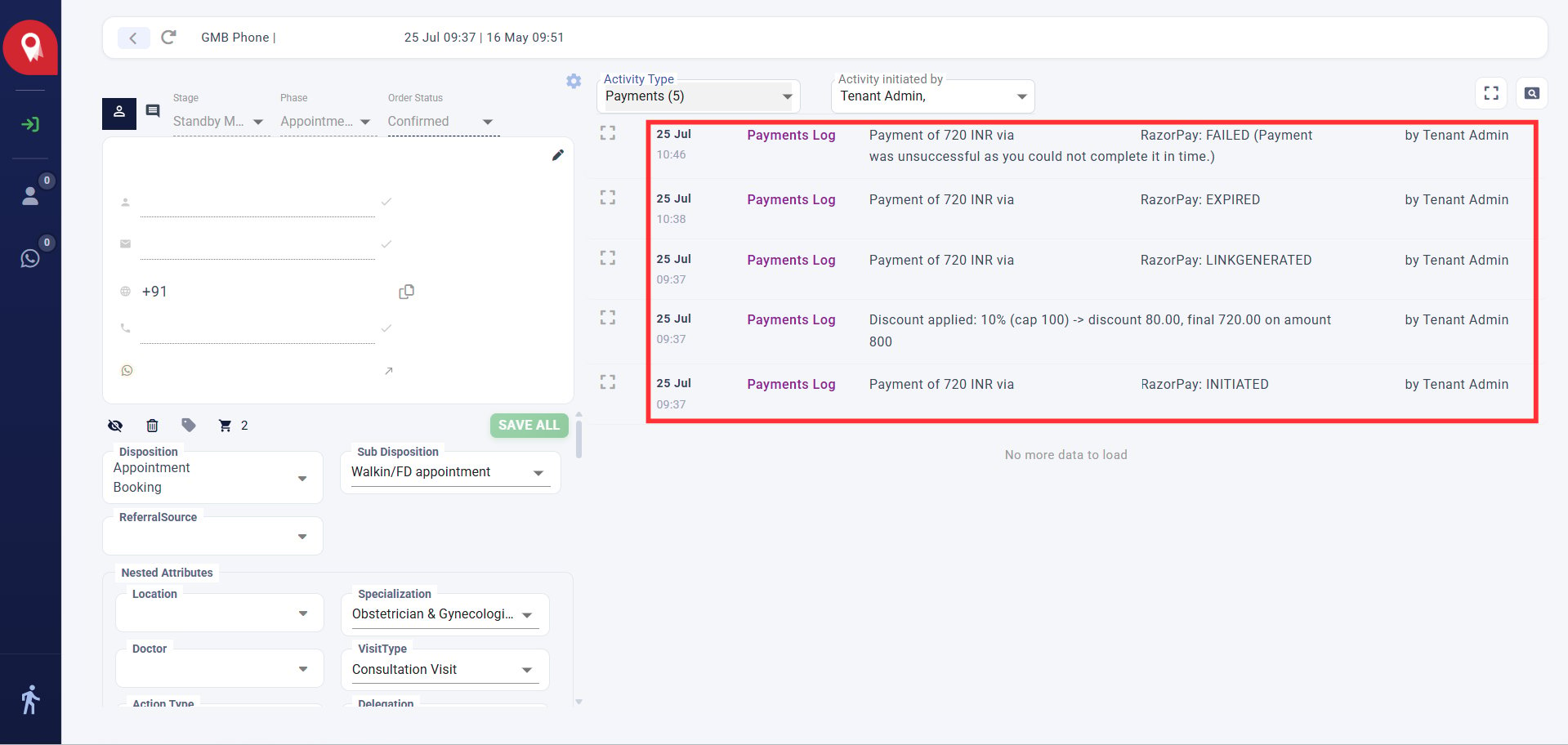
The Activity Log also captures discount adjustments and the exact payment gateway used (e.g. Razorpay), which is useful when escalating a payment issue to your finance or tech team.