Navigating the Dashboard
When you open Data & Reports, you’ll see a date range selector at the top of the page. This control governs all the charts and panels below it, so set your desired window before drawing any conclusions from the data.1
Set your date range
Click the date range selector and choose a start and end date. For weekly performance reviews, a rolling 7-day window works well. For campaign analysis, align your range with the campaign’s start and end dates to isolate its effect.
2
Review the Orders Chart
The primary chart loads automatically once your date range is set. Scan for peaks, troughs, and sustained trends across the selected period.
3
Correlate with external events
Cross-reference notable data points against your campaign calendar, operational events, or known outages to understand the cause behind significant movements.
4
Export or share findings
Use your browser’s screenshot or print tools to capture charts for reports, or navigate to the Transactions sub-page for exportable granular data.
Orders Chart
The Orders Chart displays daily order volume as a time-series line across your selected date range. Each data point represents the total number of orders processed on that day, giving you a continuous view of activity rather than an aggregated summary. This granularity is what makes the chart most useful. You can see not just that a particular week was strong, but exactly which day the peak occurred and how quickly volume returned to baseline. For example, a spike of 451 orders on a single day compared to a baseline of 173 two days earlier is a pattern that a weekly aggregate would obscure entirely.How to Use This Data
The Orders Chart supports three primary use cases that map to different planning rhythms in your organization. Weekly performance benchmarking — At the end of each week, compare the current week’s daily average against the previous week. A consistent benchmark helps you set realistic targets and quickly flag underperformance before it compounds. Operational load planning — If you can predict high-volume days based on historical patterns, you can staff accordingly, ensure your bot is fully trained for anticipated query types, and pre-configure escalation paths so human agents aren’t overwhelmed. Campaign effectiveness measurement — Run a post-campaign analysis by setting your date range to cover the campaign window plus a few days before and after. Look for a measurable lift in order volume during the campaign period. If the lift is absent, dig into the Transactions data to check whether traffic reached the platform at all.For the most accurate campaign attribution, combine the Orders Chart view with the UTM Tags analysis available in the Transactions section. UTM data tells you not just that orders increased, but which specific campaign, source, and medium drove them.
Introduction
The Data & Reports module lets you build custom queries across your order, transaction, and channel data — then render results as tables, bar charts, pie charts, or line charts. You can slice data by date range, canonical type, grouping dimension, and rule-based filters, then export the output directly to Excel.Accessing Reports
Navigate to the Reports section from the left sidebar (the chart icon). The My Reports list shows every report saved under your account, along with its domain and status (Active / Inactive). Use the Active toggle to filter down to live reports only.If no reports are listed, you’ll need to create one using the domain and view selector on the right panel.
Selecting a Domain and View
Before entering the query builder, you must select:- Domain — the data category you want to query. Available domains:
- Assessments
- Channels
- Documents
- Orders (shown selected in the example below)
- Semantic Insights
- Transactions
- View — the specific report lens within that domain. For the Orders domain, the available view is Conversions.
Query Builder
The query builder opens to the full report interface under the breadcrumb Orders › Conversions.Date Range
The date range selector at the top of the screen controls which period your data covers. Use the left and right arrows to scroll across weeks. The currently selected window appears in the top bar.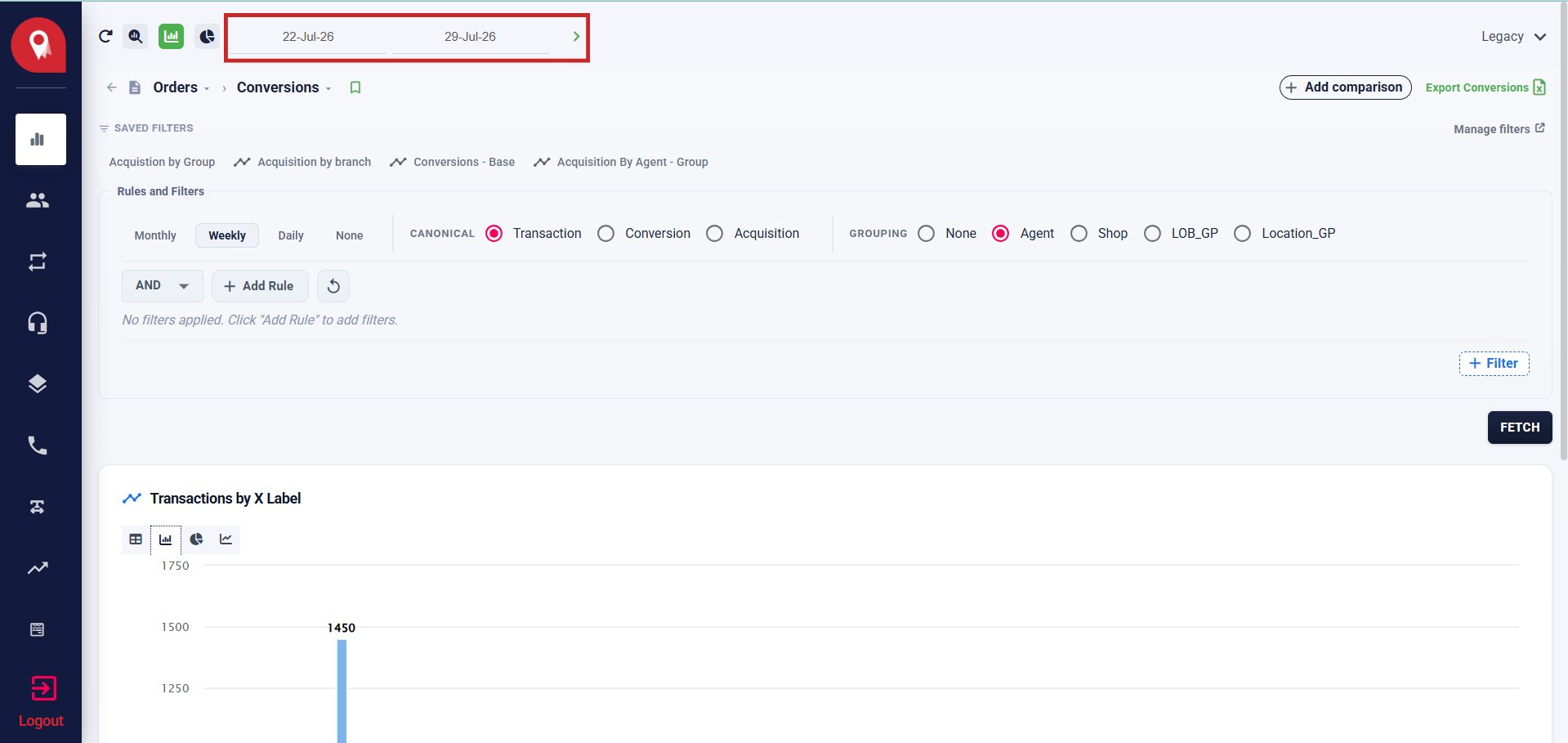
Time Granularity
Select how data is bucketed along the time axis: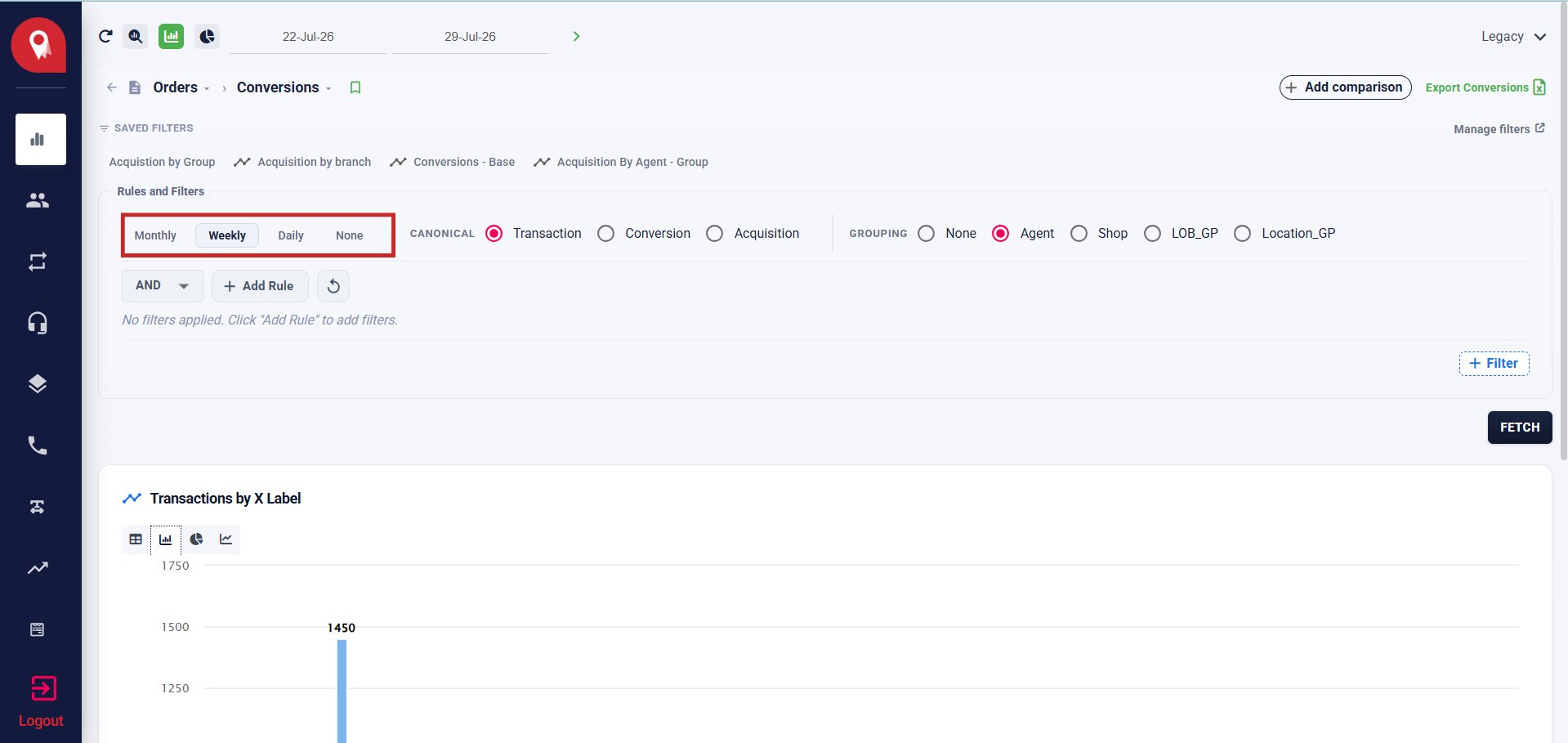
Canonical Filter
The Canonical selector determines which event type is the unit of measurement: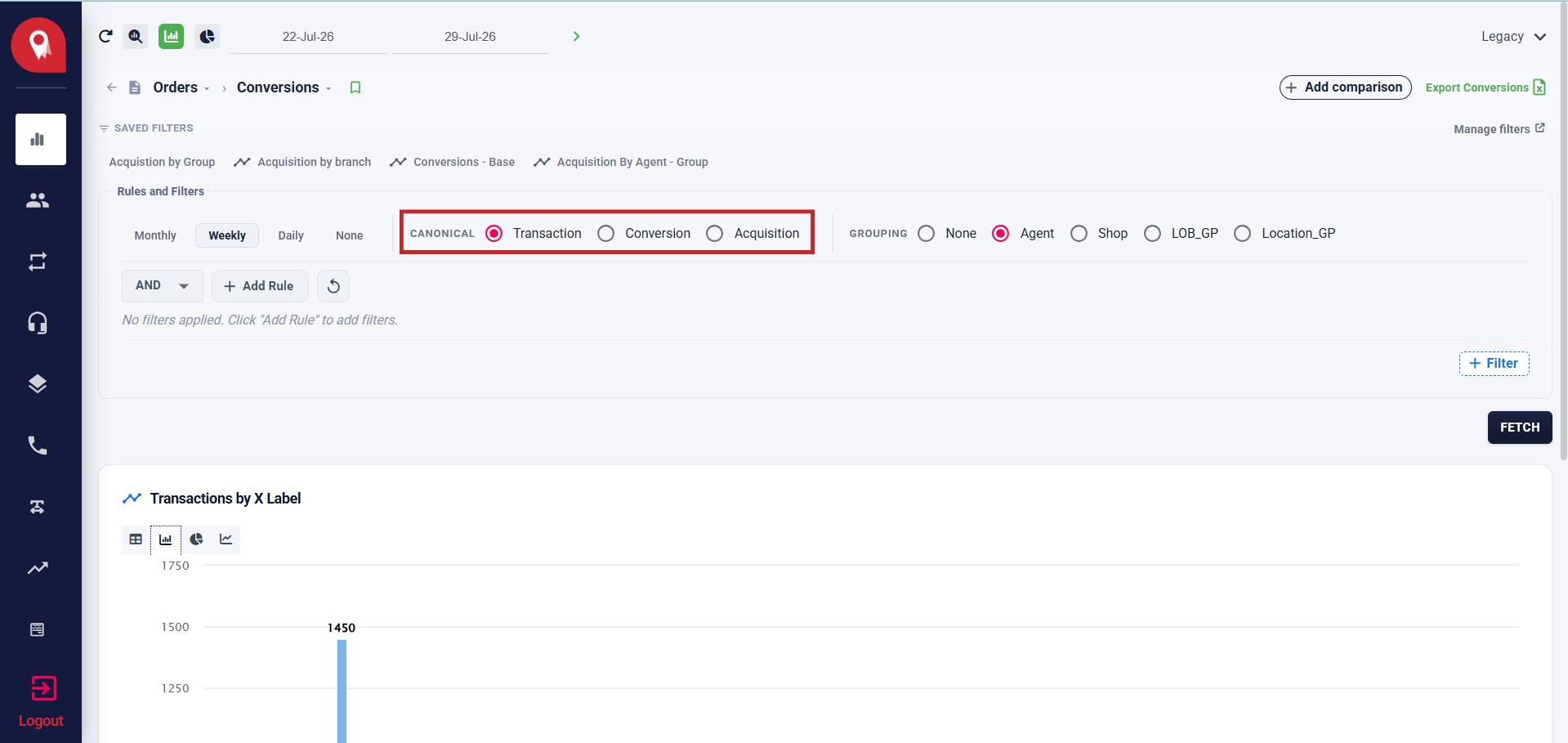
Grouping
The Grouping dimension sets how results are broken down in the chart and table: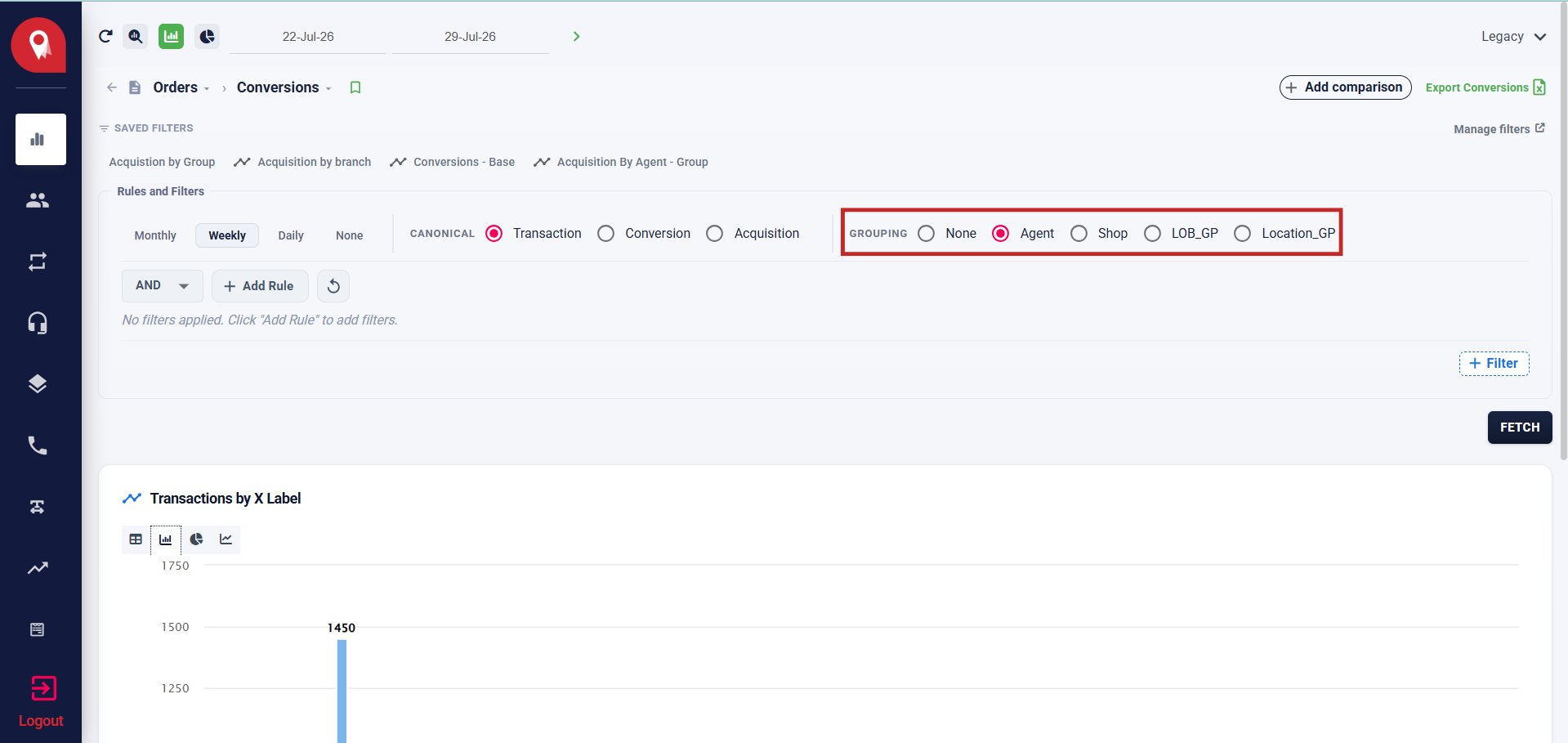
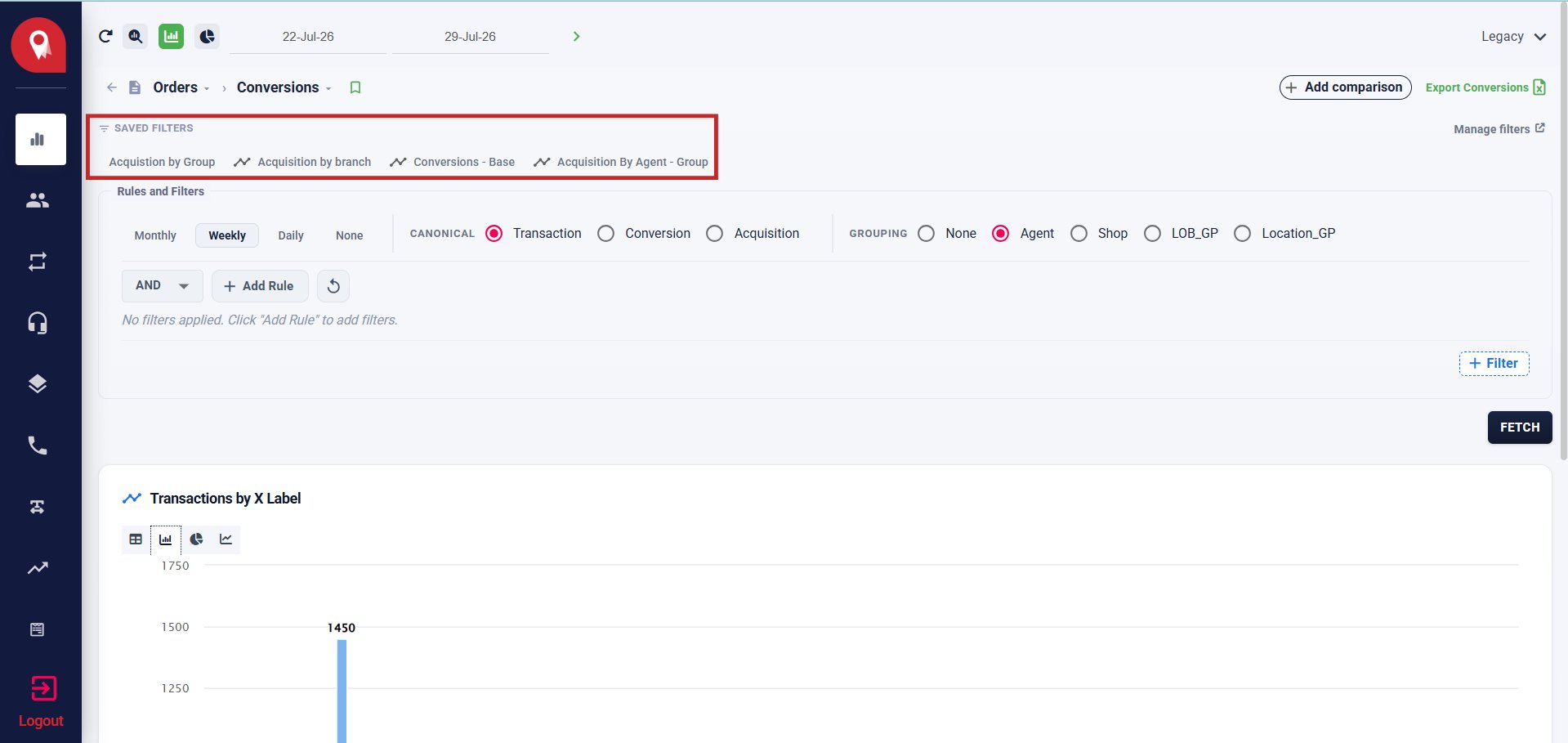
Saved Filters
Pre-configured filter combinations are available as quick-access tabs above the rules section. Example saved filters visible on this view:- Acquisition by Group
- Acquisition by Branch
- Conversions — Base
- Acquisition By Agent — Group
Rules and Filters
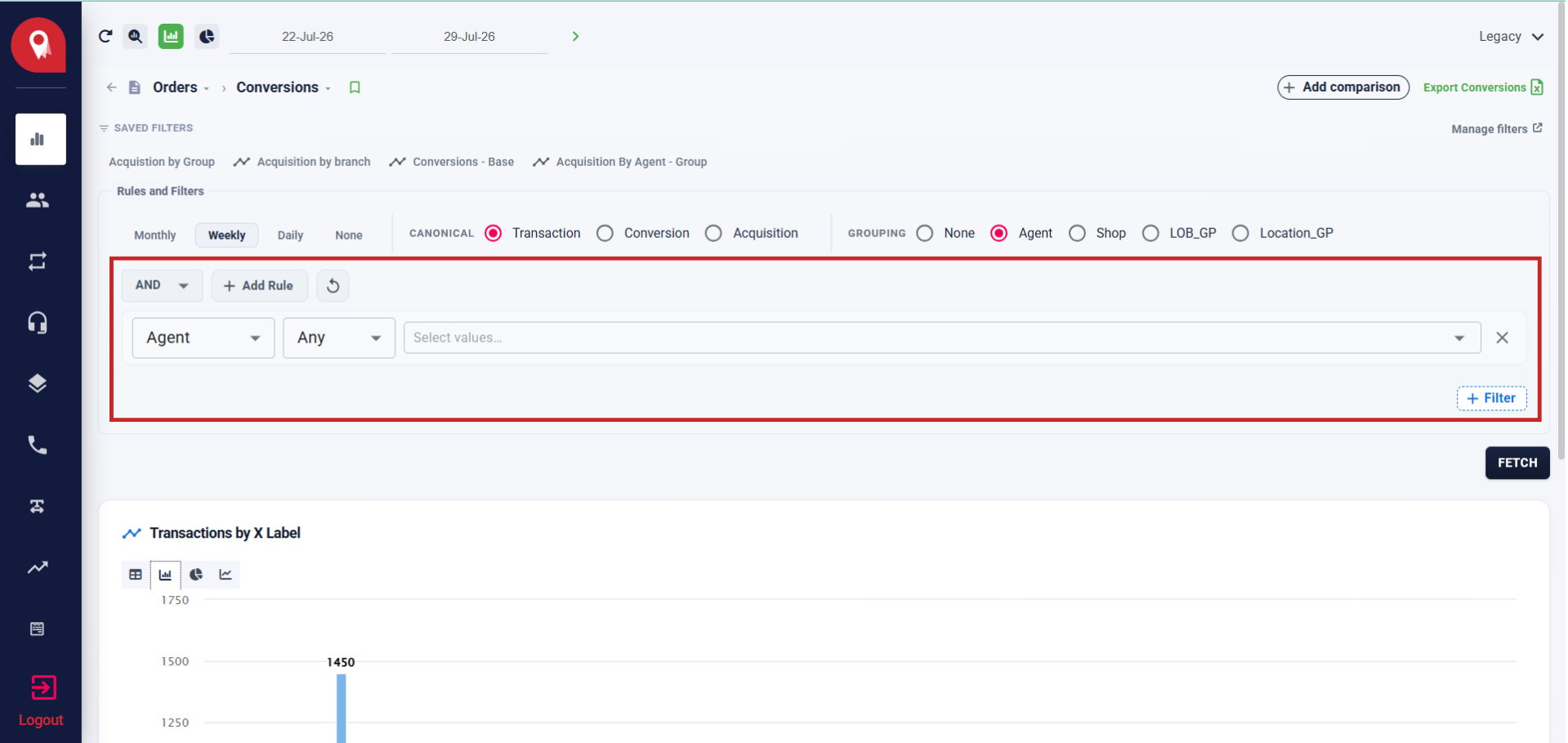
Use the Rules and Filters section to narrow the dataset with attribute-level conditions before fetching.Adding a Rule
- Click + Add Rule.
- Select the attribute to filter on. Available attributes include:
- Agent
- LOB
- Branch
- Transaction Phase
- Transaction Stage
- Order Status
- Grouping
- Source
- Archival Status
- Transaction Attributes
- UserRecency
- Payment Status
- Amount
- Allocation Type
- Select the operator for that attribute:
- Select or search for the value from the dropdown. For Agent, this populates a searchable list of all agents on the platform.
Combining Rules
Use the AND / OR logic toggle to control how multiple rules interact:- AND — all rules must be satisfied simultaneously
- OR — any one rule being satisfied is sufficient
Fetching Data
Once your date range, granularity, canonical type, grouping, and rules are configured, click FETCH to run the query.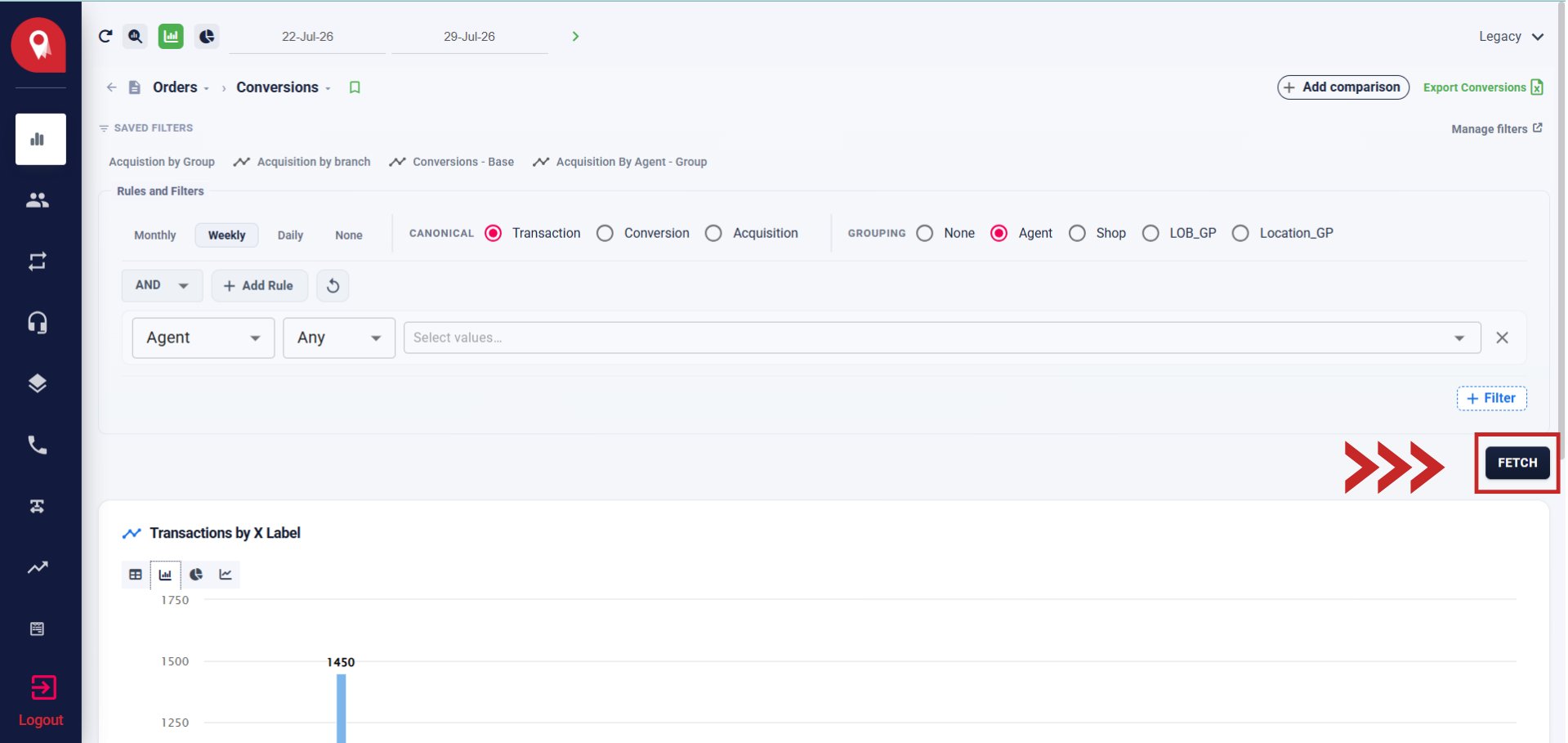
Reading the Results
Results appear as Transactions by X Label, where X Label reflects the active grouping dimension (e.g. Agent). You can switch between four visualization types using the icons above the chart:
The table view shows each grouping value as a row, with columns per date period and a running Total column on the right.
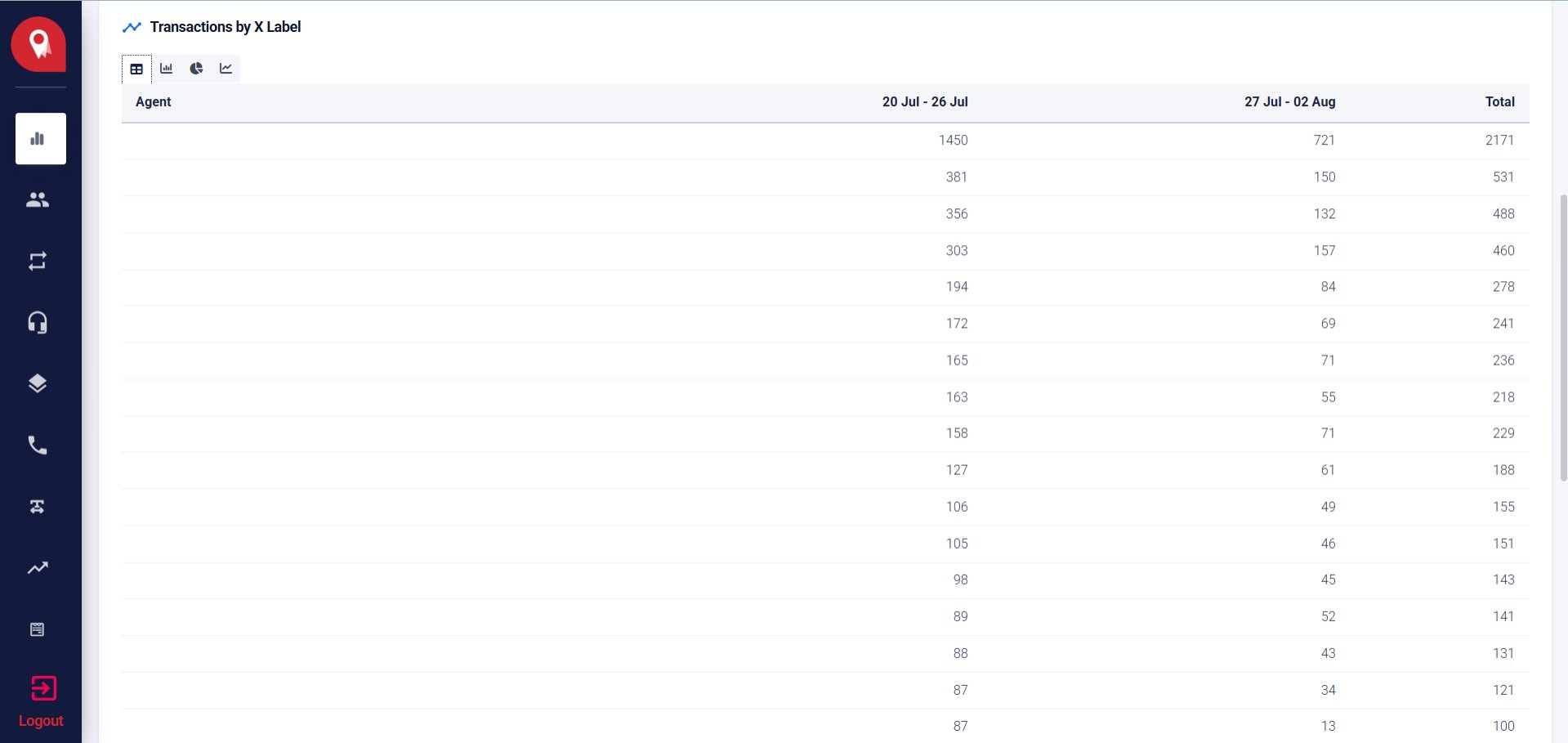
Exporting Data
Click Export Conversions (top right of the query builder) to open the export modal. You can choose to export as Export All Records — which ignores your current filters and downloads the complete dataset — or Export Filtered Records — which honours your active rules and exports only the matching data. Both options download as a CSV file scoped to your selected date range.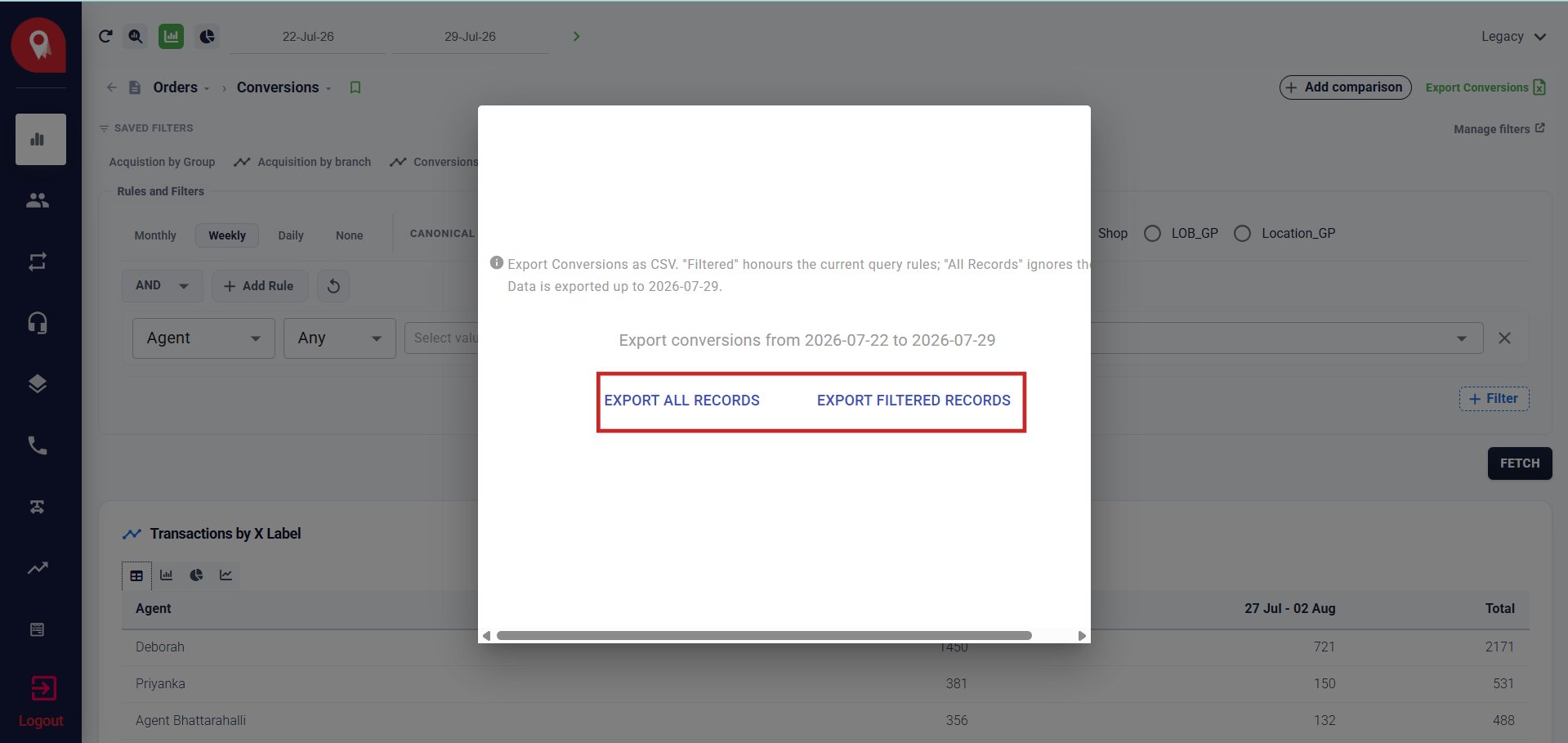
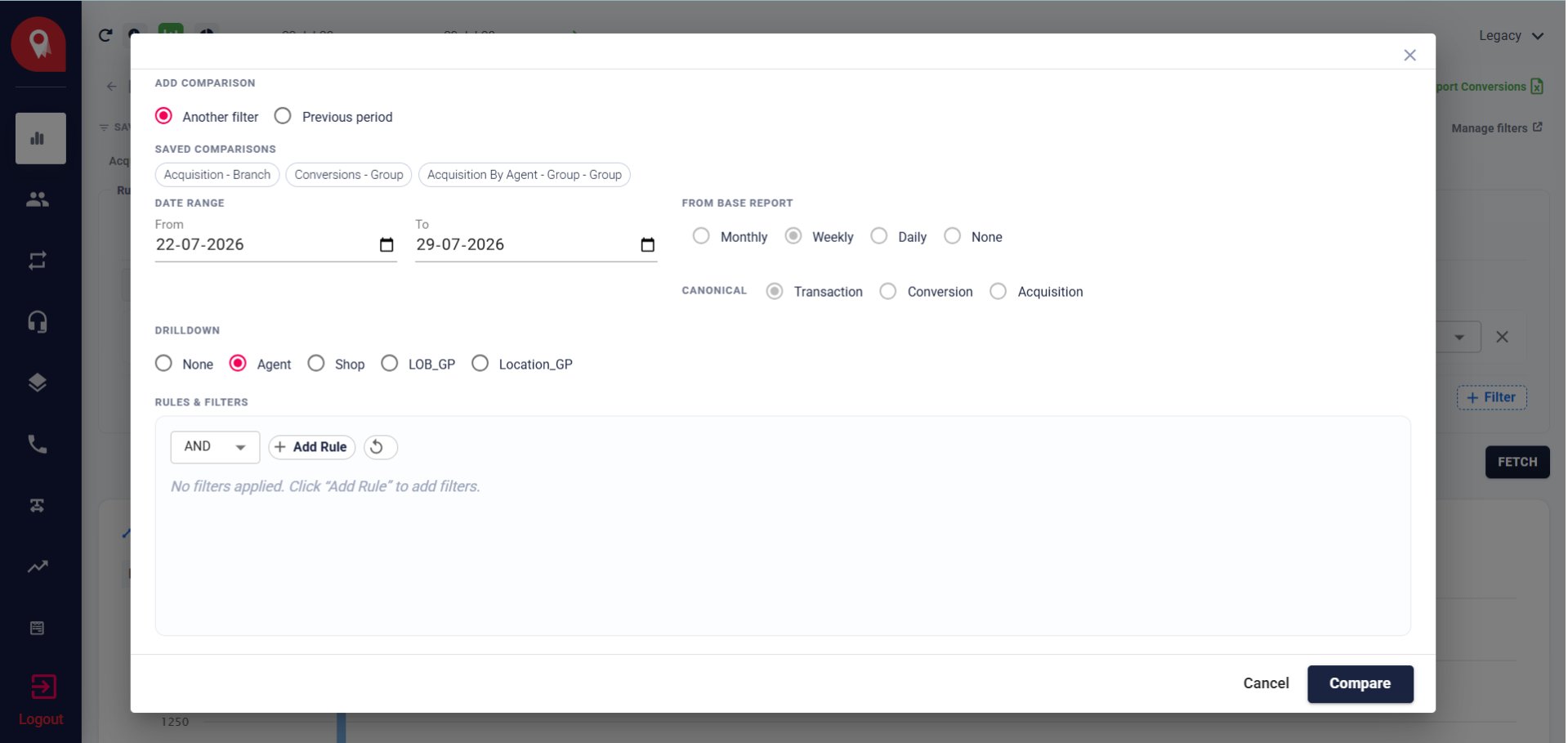
Comparing Periods
Click + Add Comparison (top right of the query builder) to open the comparison modal. You can compare against Another Filter — where you define a fully custom second query — or against the Previous Period, which auto-populates the date range for you. If you have saved comparisons like Acquisition - Branch or Conversions - Group, you can apply them directly from the Saved Comparisons row. The comparison runs its own independent configuration — you set the date range, granularity, canonical type, drilldown dimension, and any rules or filters you want applied. Once everything is set, click Compare to overlay the results on your existing query.